Download & Install
DAS Radio Agent is a Windows service application that runs beside TRBOnet to transfer radio position and status information to your EarthRanger site.
This page covers everything needed to install and run the service for your own EarthRanger site.
Requirements
To install and run DAS Radio Agent you will need:
- TRBOnet Server — a version present in the download list below.
- A TRBOnet license with two or more Remote Dispatch Connections. Ask your TRBOnet provider for this information.
You will also need these details from your DAS Site Administrator:
- EarthRanger Website Address
- EarthRanger Authentication Token
- EarthRanger Source Provider Key
Find your TRBOnet version
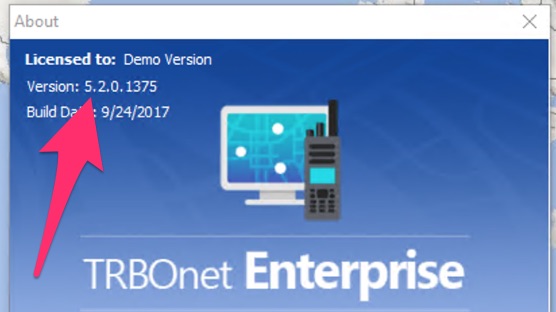
Download the installer that matches your TRBOnet version. To check which version you are running:
- On your TRBOnet PC, open the TRBOnet Dispatch application.
- Choose Help → About.
What if my version isn't listed?
Every supported version appears below. If you are running something different, contact the EarthRanger Support Team at support@earthranger.com to ask whether support for your version can be added.
Download the installer
Match the version exactly
Each installer is built against a specific TRBOnet release. Installing a mismatched version will not work.
TRBOnet 6.x
TRBOnet 5.x
TRBOnet 4.x
TRBOnet 3.x
Prepare your PC
If an earlier version of DAS Radio Agent is already running on your TRBOnet PC, stop it first:
- From the Windows → Run menu, type
services.mscand press Enter. - Find the service named DAS Radio Agent. If it is Running, right-click it and choose Stop.
Run the installer
- Find the DAS Radio Agent installer file you downloaded.
- Right-click the file and choose Run as Administrator.
- Click through the installation dialogs, entering configuration data as prompted.
Two of those dialogs need information you gathered earlier.
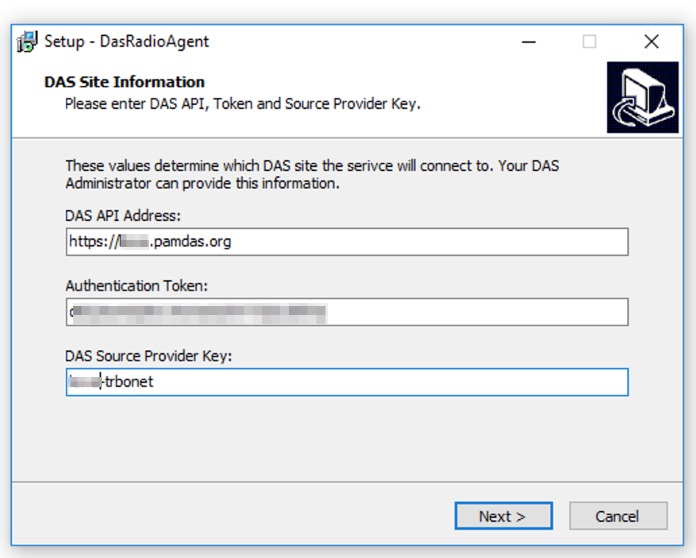
| Configuration name | Description | Example |
|---|---|---|
| DAS API Address | Your EarthRanger website URL | https://demo.pamdas.org |
| Authentication Token | A long secret value | dEQ3onfQGkw1hLhsAo0FY3QSxIElWp |
| DAS Source Provider Key | A simple name | seattle-trbonet |
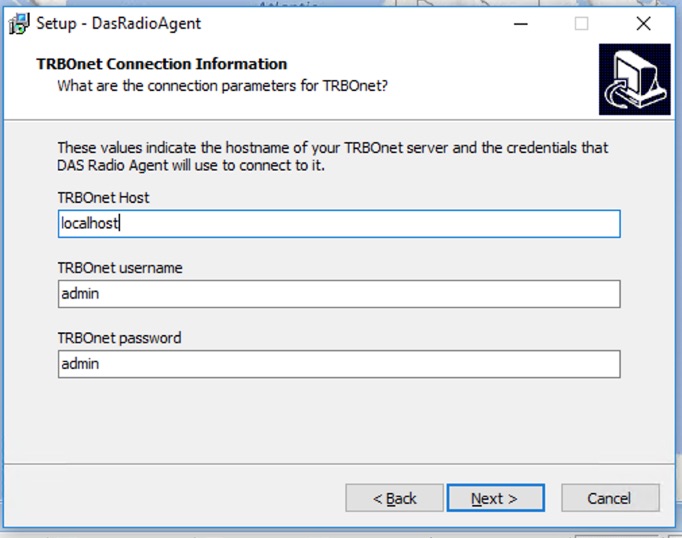
| Configuration name | Description |
|---|---|
| TRBOnet Host | The PC where TRBOnet is installed. If you are installing on the same PC where TRBOnet is running, set this to localhost. |
| TRBOnet Username | Leave as admin |
| TRBOnet Password | Leave as admin |
Click through the remaining dialogs. When setup completes, the service will be running.
Administration and troubleshooting
DAS Radio Agent has no user interface, but there are a few things you can do to monitor and troubleshoot it.
View the log files
The software is installed to C:\Vulcan\DasRadioAgent and writes to a log file named
dasradioagent.log. Open it with any text editor.
Restart the service
Open the Windows Services Management Console (services.msc), find DAS Radio Agent,
right-click, and choose Restart.
Verify configuration
Configuration is stored at C:\Vulcan\DasRadioAgent\settings.ini.
Take care editing this file
Saving settings.ini with invalid information will disable the DAS Radio Agent
service. Read it if you need to; edit it only if you are certain.
Need help? Contact support@earthranger.com.