Using the service
The service is meant to be quiet — once it's set up, you mostly forget about it. The web UI is for the times you need to look in.
Open it from the Gundi Radio Service desktop shortcut, or
type http://localhost:47823 into a browser on the same box.
Status page
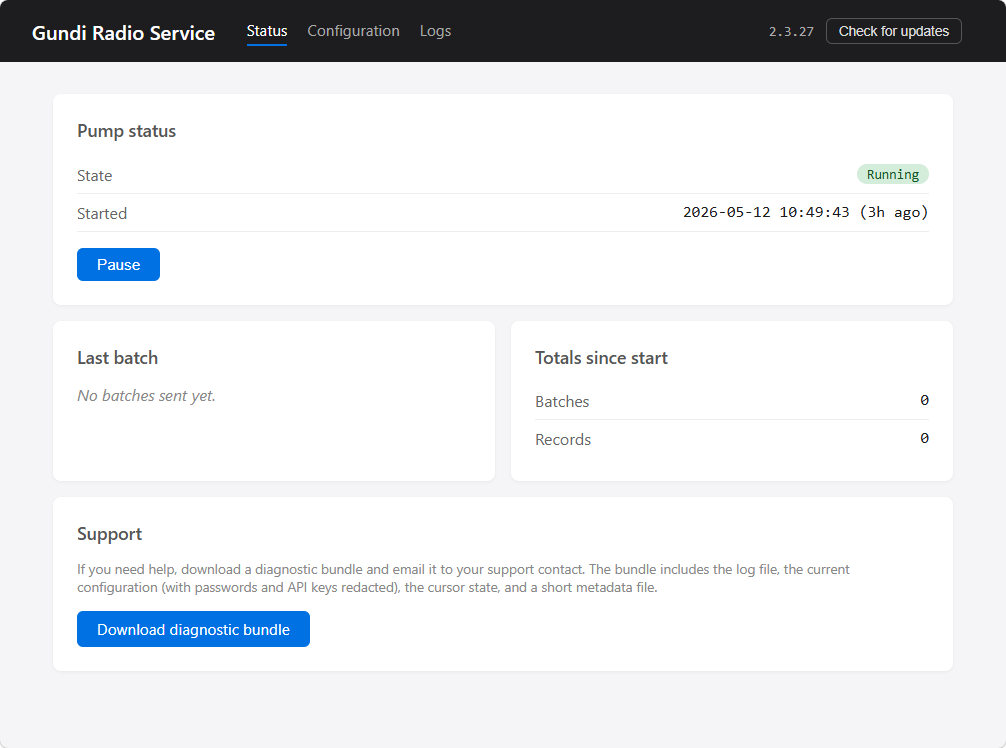
Four cards on the Status page, in this order:
Pump status. Whether the pump is currently Running, Paused, or Stopped. The Started timestamp tells you when the service last came up. If something has gone wrong, a yellow "Last error" box appears beneath the state — dismissible with the × on the right.
Last batch. When the most recent batch was forwarded, how many records it contained, and the cursor at the time. The "X seconds ago" text under the timestamp ticks up live so you can glance at the page and see whether the pump is moving.
Totals since start. Cumulative batches and records since the service last started. Reset on every restart (intentional — these are "is it healthy" gauges, not historical metrics).
Support. A single button: Download diagnostic bundle. Builds a zip containing the log file, archived logs, the current configuration (with passwords and API keys redacted), the cursor state, and a metadata summary. Email it to support if you ever need a hand.
Header controls
The dark bar at the top of every page shows:
- The app name (left).
- The nav links: Status, Configuration, Logs (centre).
- The current version + Check for updates button (right).
When an update is found, the right side gains an Update to X.Y.Z button. See Updating for what happens when you click it.
Pausing the pump
The Pause / Resume button is on the Pump status card. Pausing stops the pump from posting new batches without unregistering the service or restarting anything. Useful when:
- You want to do maintenance on Gundi and don't want failed-post warnings in the log.
- You're testing changes to the source database and don't want half-written rows forwarded.
Paused state survives across service restarts. Don't forget to resume.
Editing configuration
The Configuration page (header → Configuration) is the same form the wizard showed, broken into two cards:
- Database connection. Reader type, host, database name, username, password, schema, batch tuning. Test connection works the same as in the wizard.
- Gundi destinations. Add, edit, or remove destinations. Group-alias picker too.
Click Save at the bottom. The pump reloads with the new settings — no service restart needed. Existing in-flight batches finish under the old settings, then the next batch picks up the new ones.
Passwords and API keys
Empty fields are interpreted as "keep the existing value." Both the password and API-key inputs show a placeholder "(unchanged)" when there's already one saved. Type a new value only when you want to replace it; leave blank to preserve.
Reading the log
Header → Logs opens the log viewer. It tails the same file
NLog writes to disk
(C:\Program Files (x86)\GundiRadioService\current\radioservice.log),
plus any archived rolls under logs/.
A few common log lines to recognise:
Posting batch of N observations— normal pump activity, fires on every batch.Heartbeat: idle for N minutes; cursor at …— once per heartbeat interval when the pump has nothing to do. The default interval is 60 minutes; tunable viaHeartbeat:IntervalMinutesinC:\ProgramData\GundiRadioService\appsettings.json.Update applied; signalling host to stop so the swap can complete.— an auto-update is in progress; see Updating.Database error (attempt N/5)— pump hit a transient error and is retrying. After 5 attempts the pump idles and waits for the next interval rather than crash-looping.
Where things live on disk
| What | Where |
|---|---|
| Service exe + binaries | C:\Program Files (x86)\GundiRadioService\current\ |
| Log file (current) | C:\Program Files (x86)\GundiRadioService\current\radioservice.log |
| Archived log rolls | C:\Program Files (x86)\GundiRadioService\current\logs\ |
| Operator config | C:\ProgramData\GundiRadioService\appsettings.json |
| Pump cursor | C:\ProgramData\GundiRadioService\state.json |
| Desktop shortcut | C:\Users\Public\Desktop\Gundi Radio Service.url |
The two files in C:\ProgramData\GundiRadioService\ are
deliberately outside the install directory so they survive
auto-updates intact.